




Perfect pen-like natural stylus while magnetically attachable to
your iPad without losing your pen again.

Adonit NEO Series
Magnetically attachable family brings you a whole new experience in expressing your thoughts and creativity like never before. Make the difficult a whole lot easier for your day-to-day life.
Explore Now


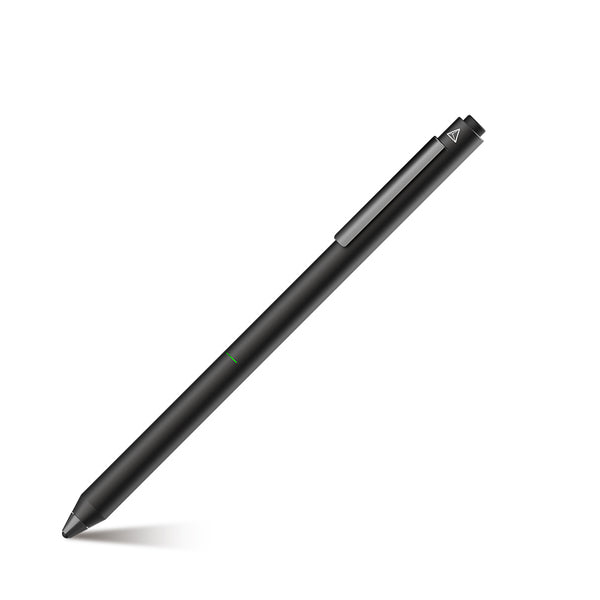
Adonit Dash 3

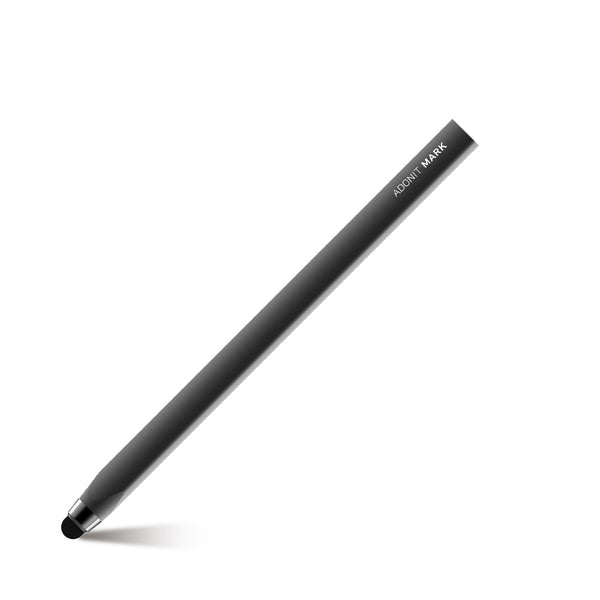
Adonit Mark
$9.99

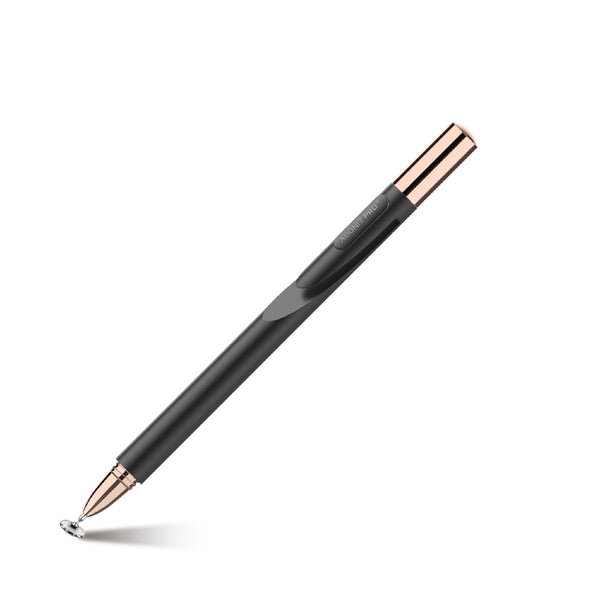
Adonit Pro 4
$29.99

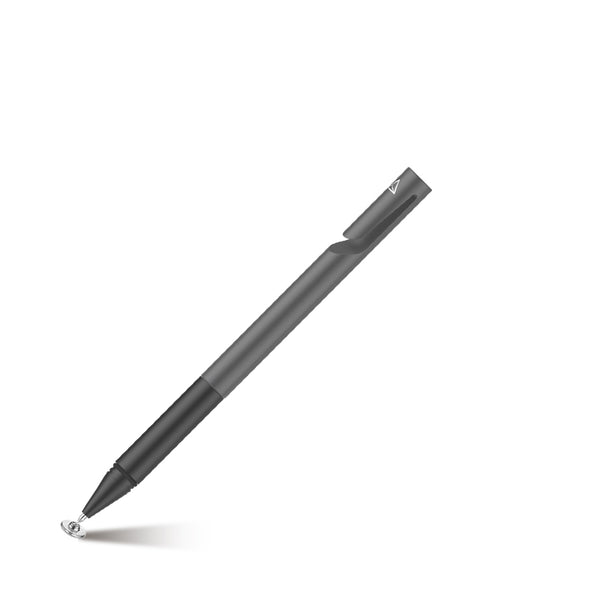
Adonit Mini 4
$19.99

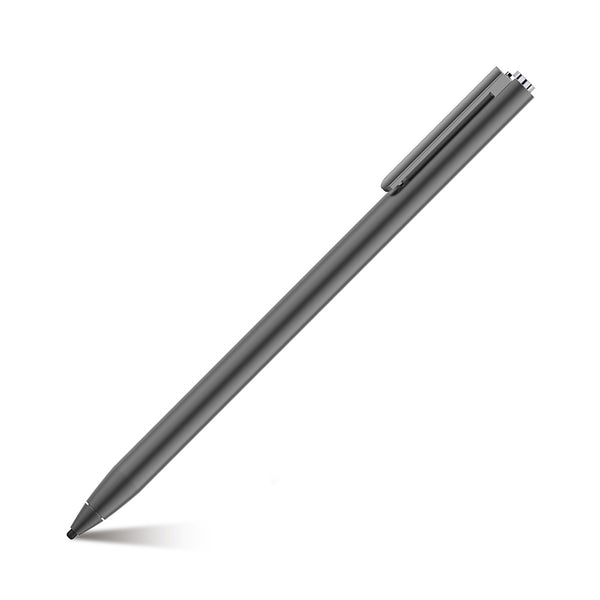
Adonit Dash 4
$59.99

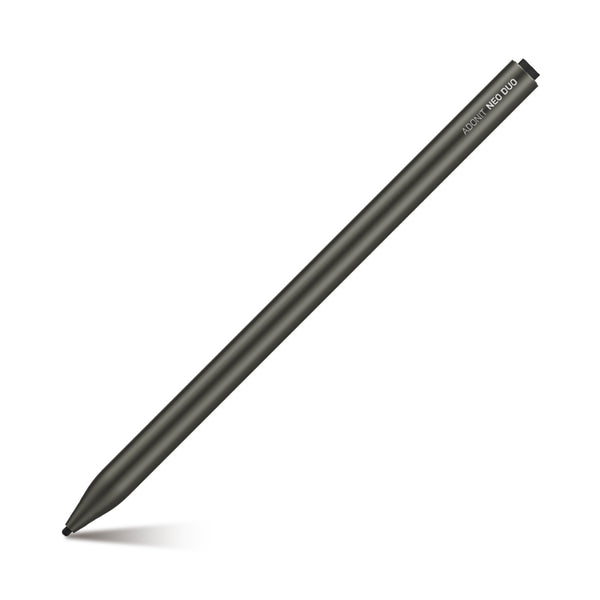
Adonit Neo Duo
$54.99

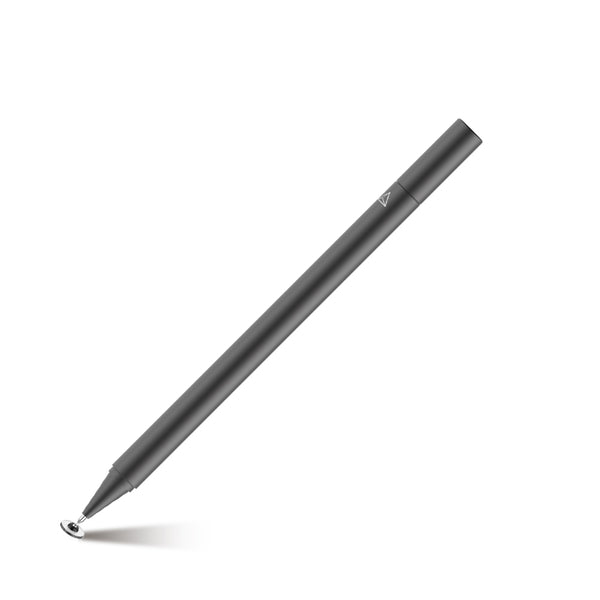
Adonit Neo Lite
$29.99

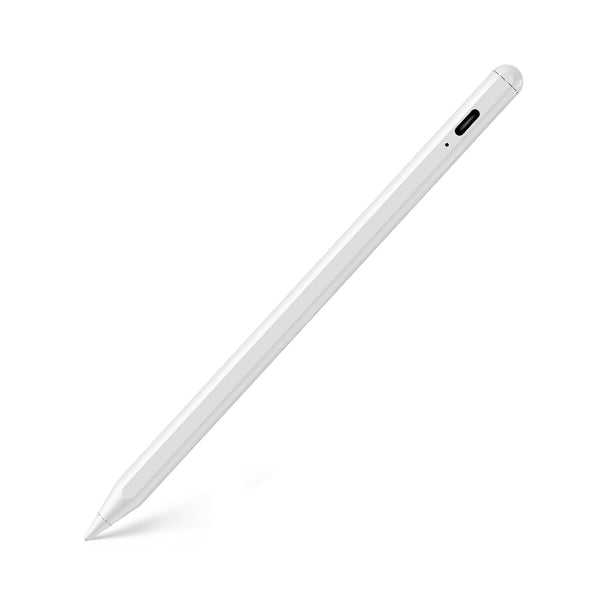
Adonit ADZ010WH
$19.99


Adonit Stylus Pens Match Every Need and Device
Adonit stylus pens draw, write, and mark up documents like no other stylus pen on the market. With several sophisticated stylus pens to choose from, it’s easy to find the right one for your device, operating system, budget and usage needs. Adonit products fit comfortably in your hand and glide as naturally as a pencil, with reduced drag, bluetooth pairing, and multiple device connectability. Now you can write, draw and design with unmatched ease of use and line precision. Record your greatest ideas yet with our one-of-a-kind product line.
PHONE PENS & GADGETS ON SALE
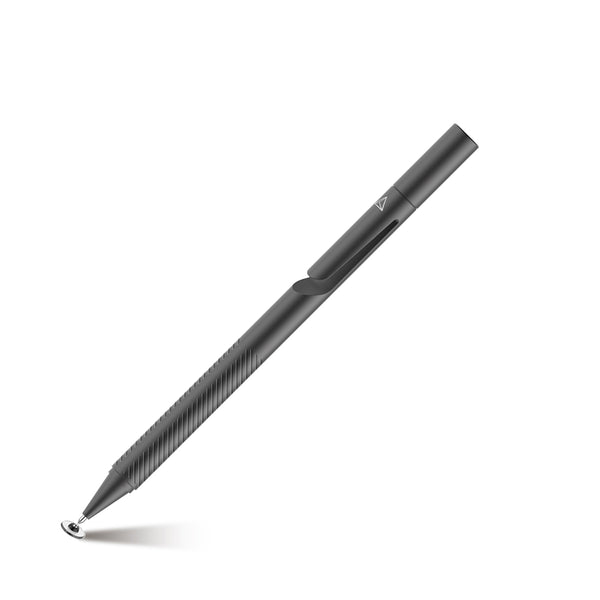
Adonit Pro 3

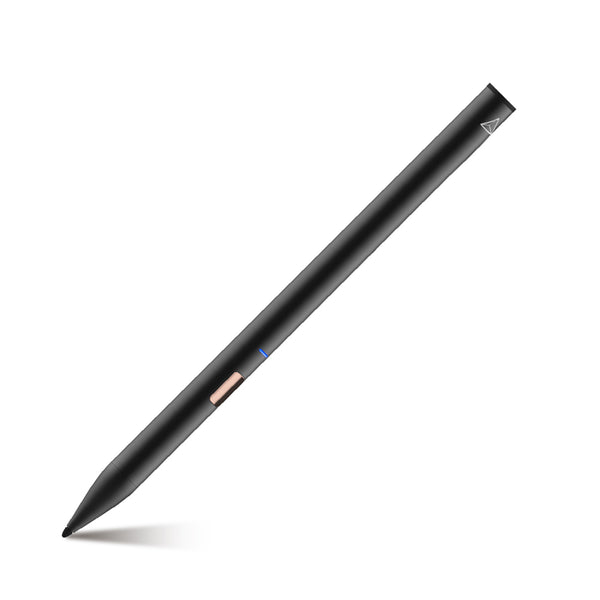
Adonit Note

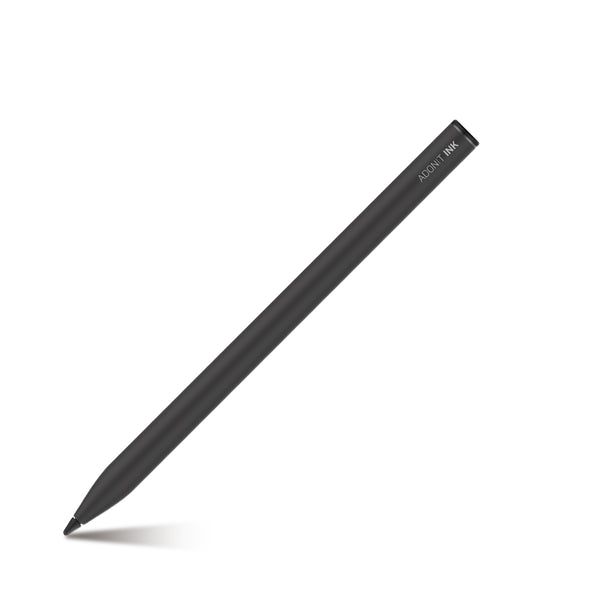
Adonit Ink

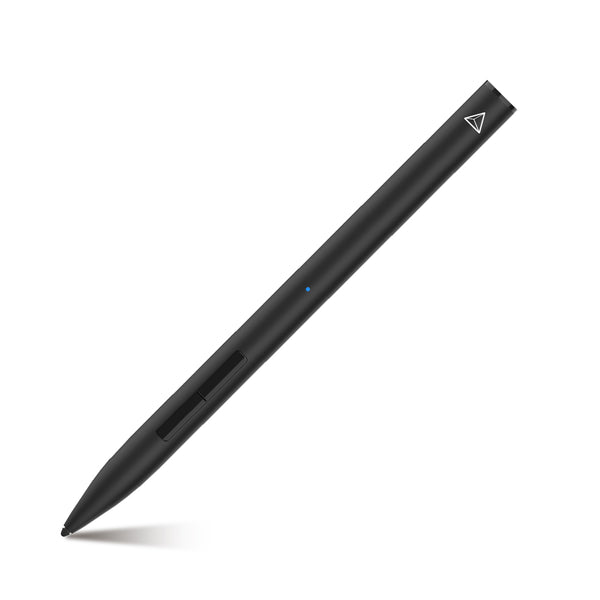
Adonit Note+

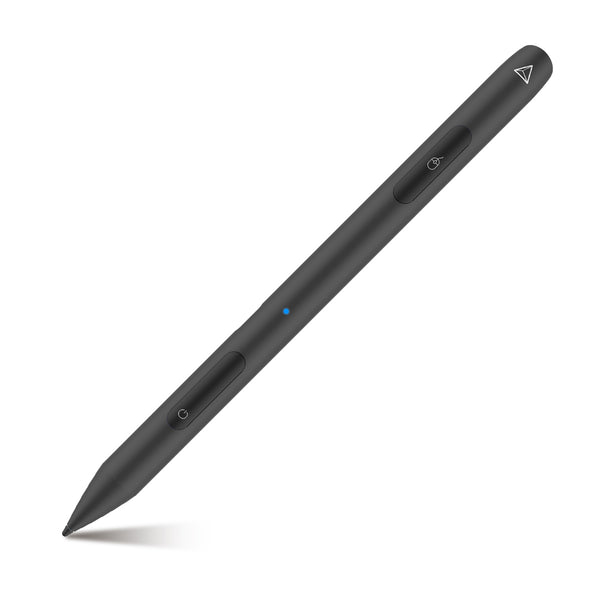
Adonit Note-M
$79.99

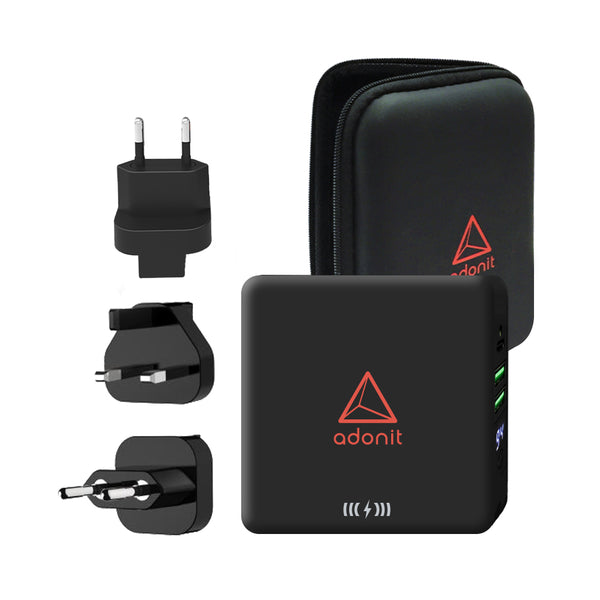
Adonit TravelCube

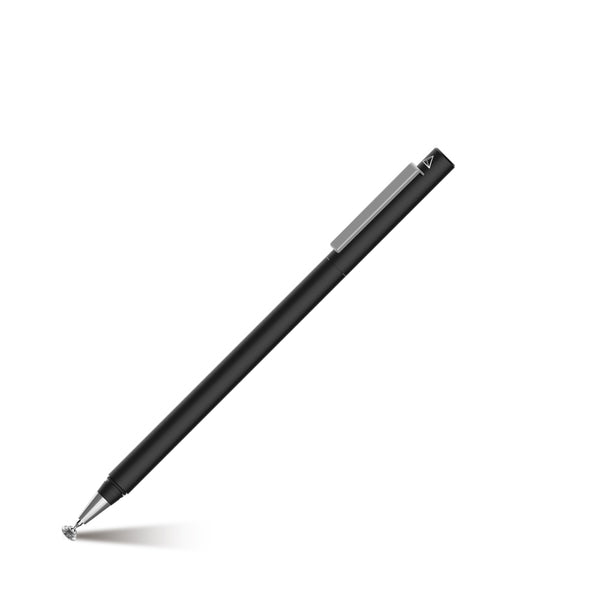
Adonit Droid

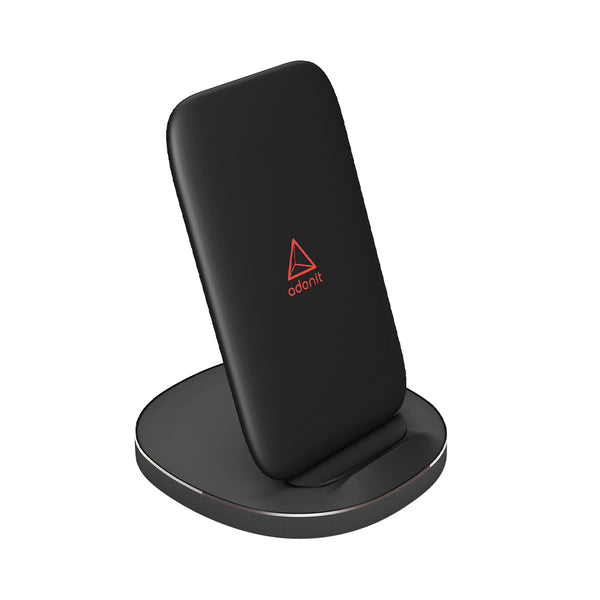
Adonit Wireless Fast Charging Stand

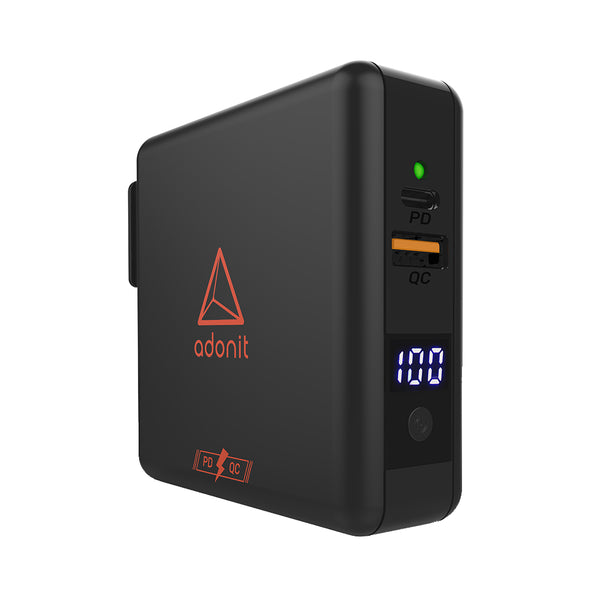
Adonit TravelCube Pro

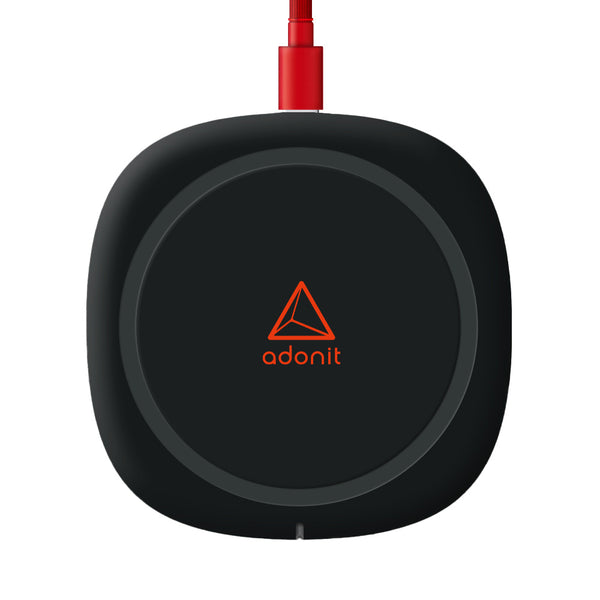
Adonit Wireless Charging Pad

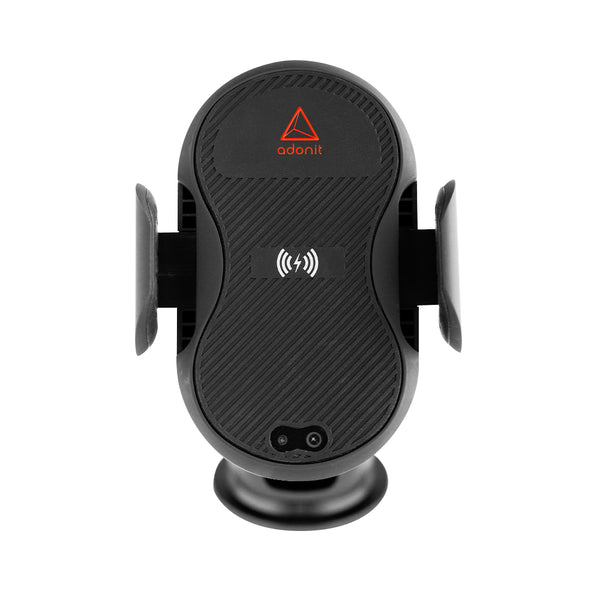
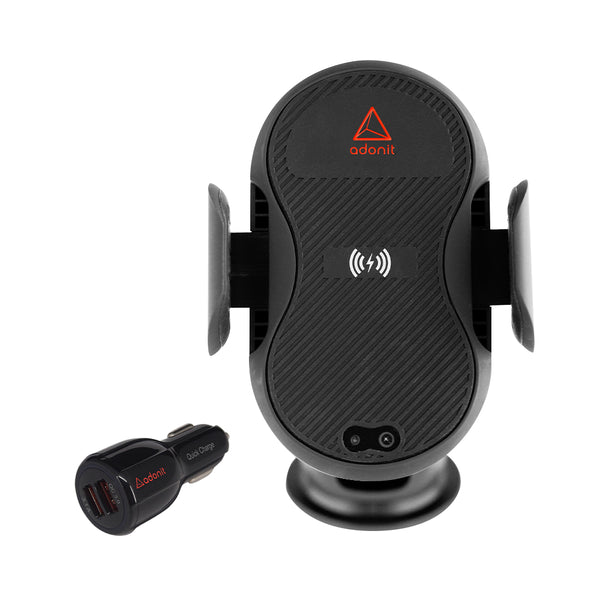
Adonit Auto-Clamping Wireless Car Charger


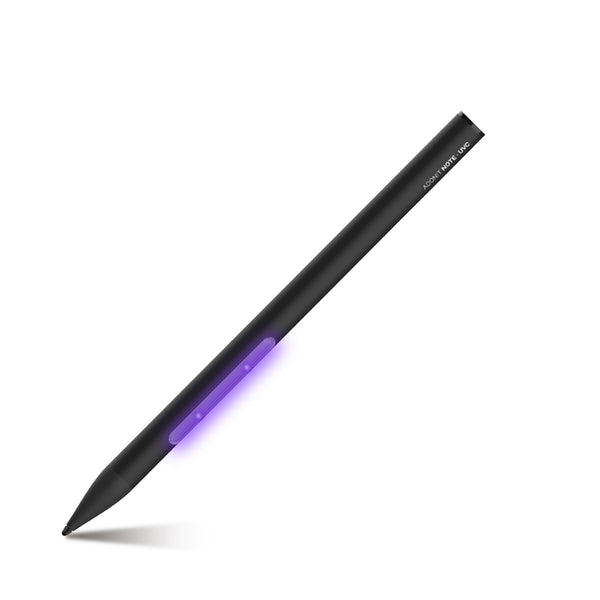
Adonit Note-UVC

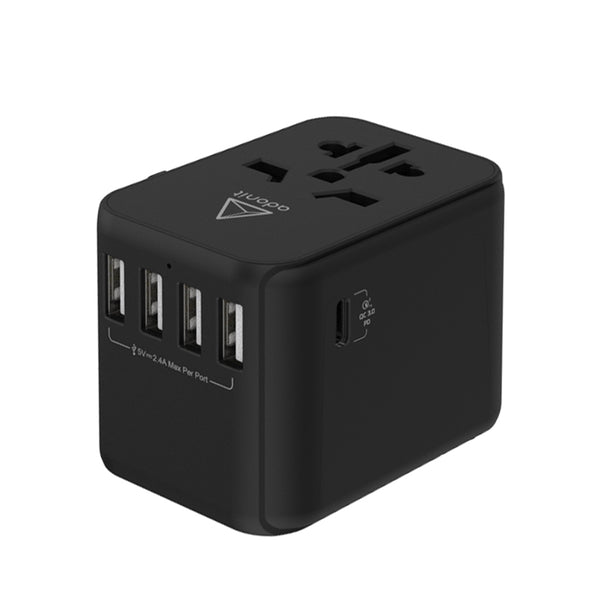
Adonit Universal Adapter PD
STYLUS PARTS
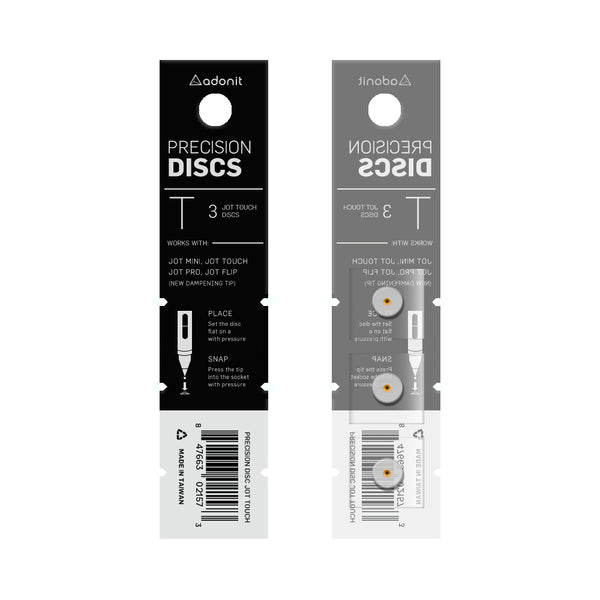
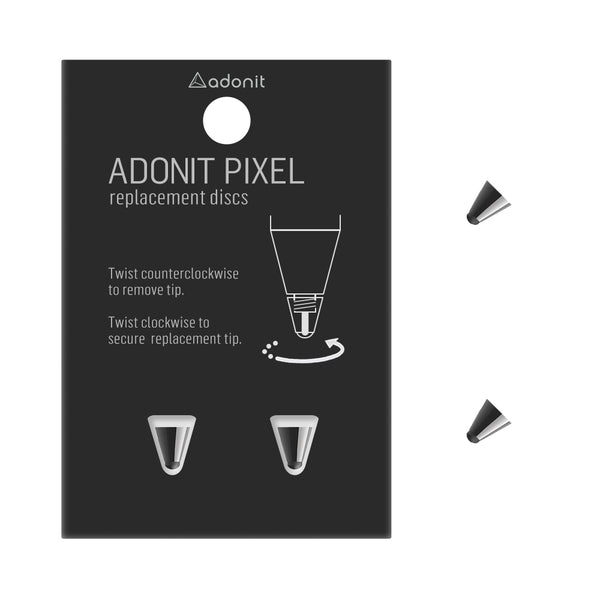

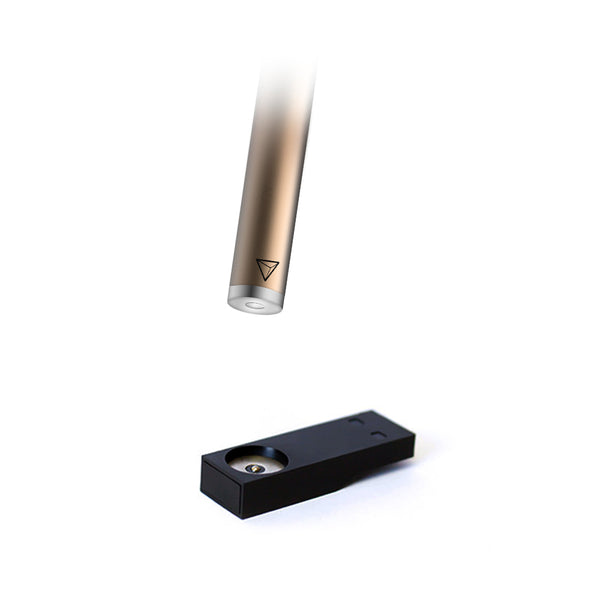
Adonit Pixel USB Charger
$15.00

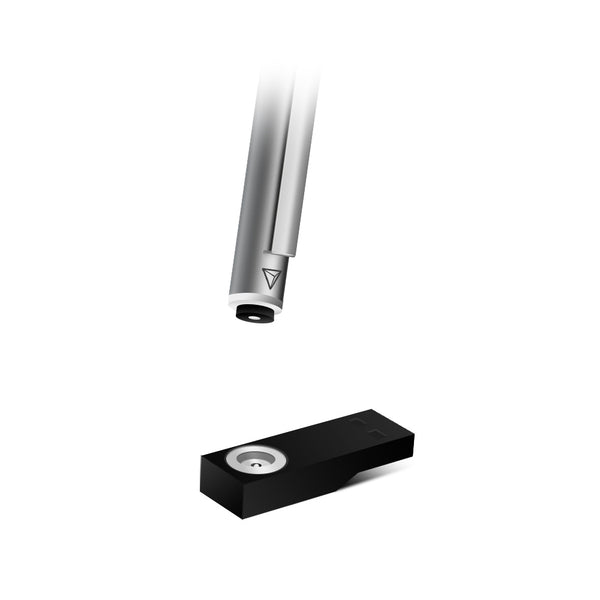

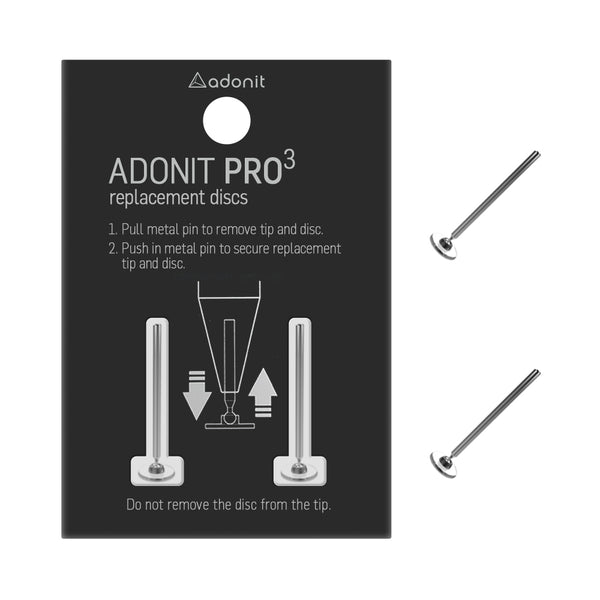

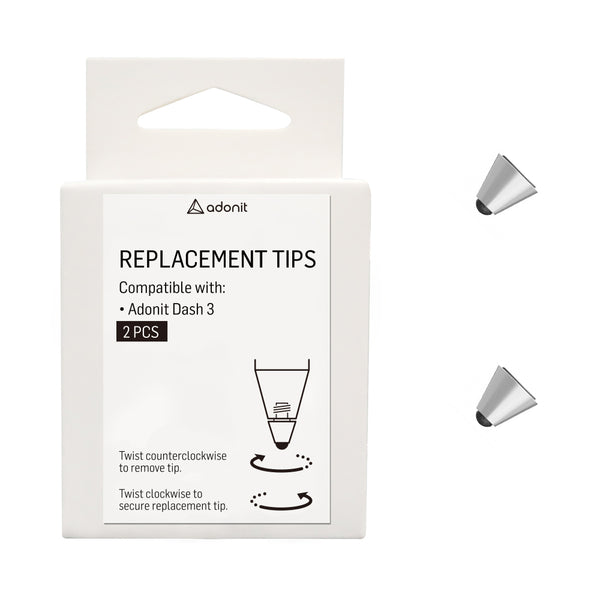

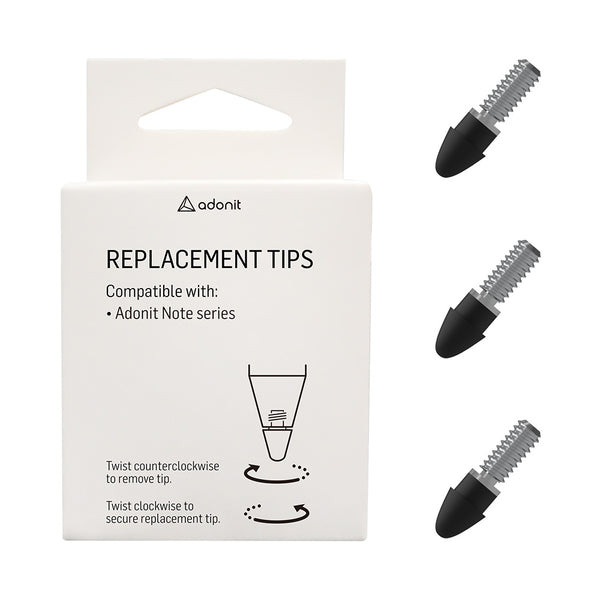

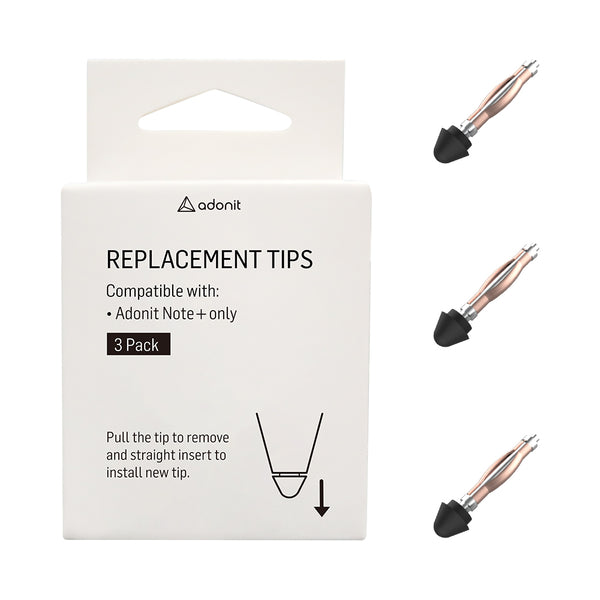

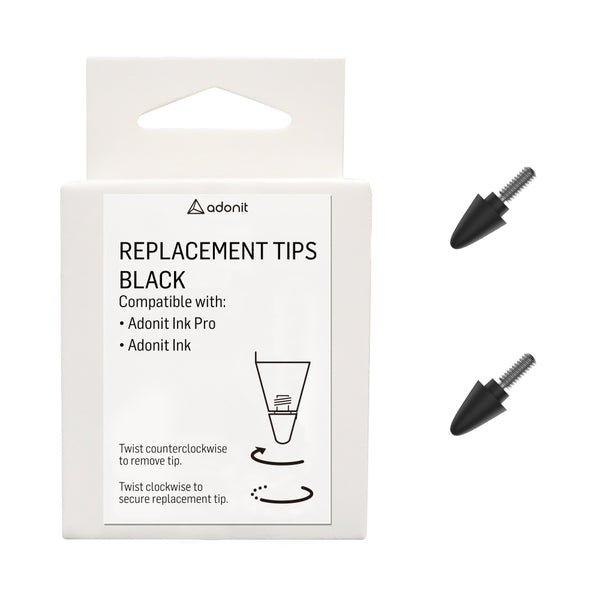

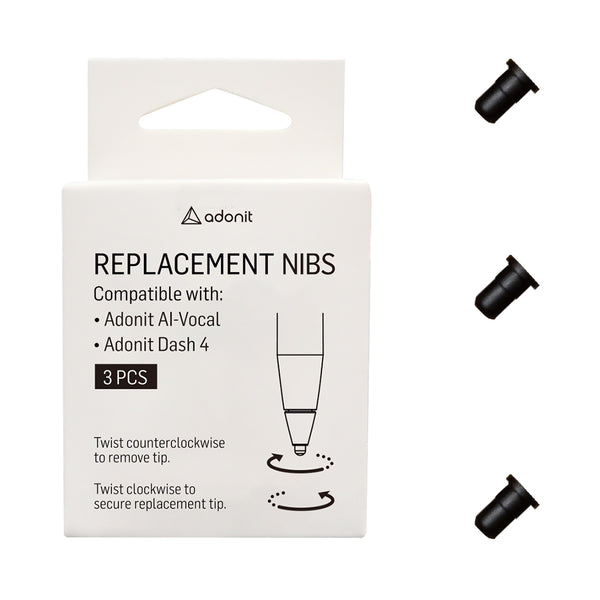

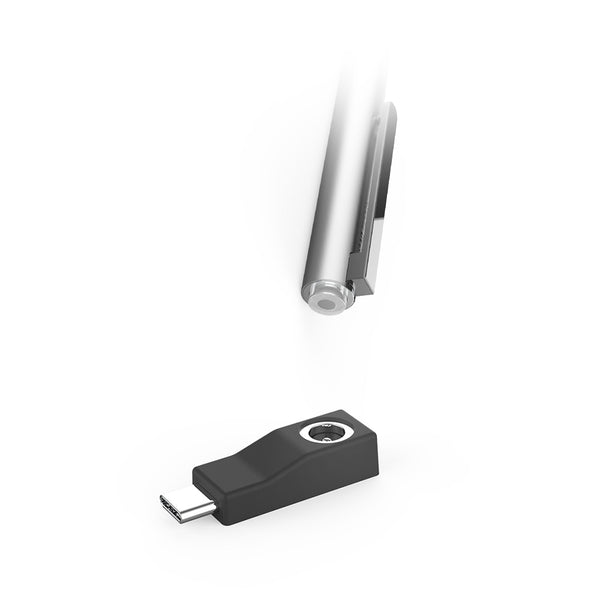

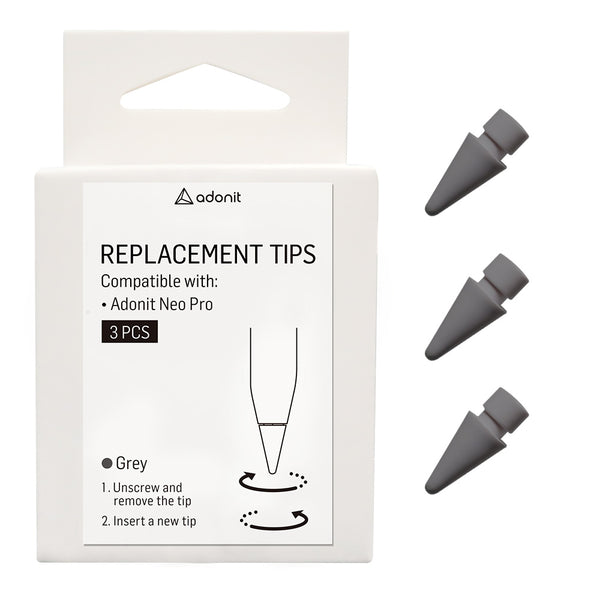

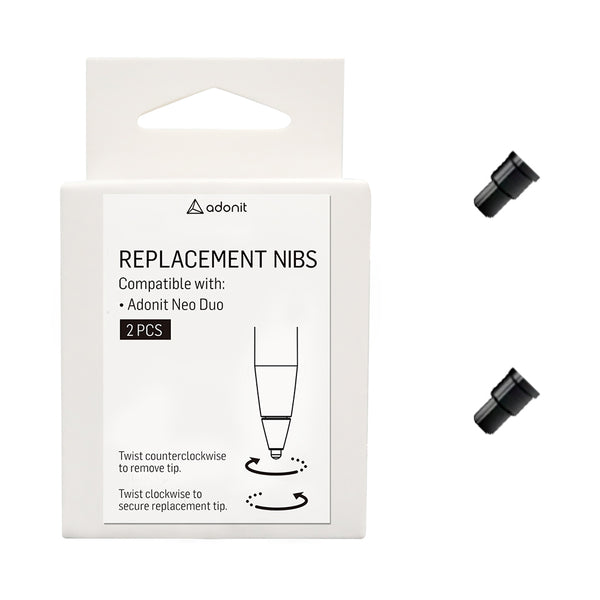

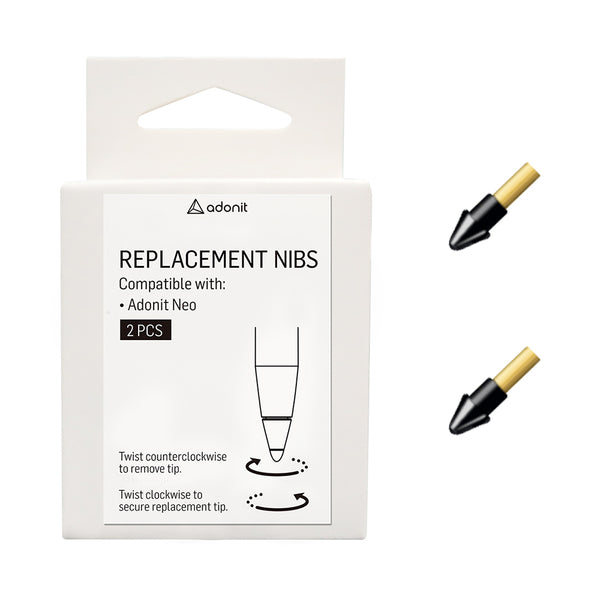
Adonit Neo Tips - 2 Pack
$14.99
Stay Informed with Our Latest Stylus and Gadget News
At Adonit, we are constantly developing new and innovative products to enhance your digital creativity and productivity. Stay up-to-date with our latest news and updates to be the first to know about our new product releases, special promotions, and insider tips.

The pressure sensitivity, tilt recognition, and palm rejection one would expect in this price range are all in place, and users can leverage Bluetooth pairing for some handy shortcut action too – “seamlessly connect a device and enjoy the convenience of customizable shortcuts for quick access to frequently used functions.”
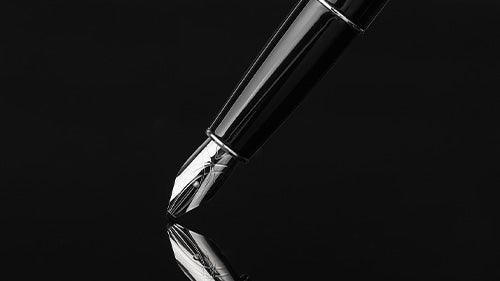
If caricatures of the super wealthy have taught us anything, it’s that when you amass enough money you can ditch the reliable ballpoint pen, switch to a fancier fountain pen, and not worry about ruining a blazer when it inevitably leaks. An enviable life, for sure, and one you can get a small taste of with the Adonit Star: a stylus that masquerades as a swanky Montblanc.

The Adonit Log is a unique stylus. The main body is made out of sustainably-sourced wood and it's visually appealing. This stylus is mainly aimed at general use and note-taking, largely because it's missing one major feature that a lot of people look for in a stylus for digital art: it has no pressure sensitivity. However, if you're not an artist this stylus is an excellent, affordable alternative to the pricey Apple Pencil.